Release r202605
What's new
This release contains the following new or changed functionality:
- Change history
- Environment backups
- Template improvements
- Transform map to array
- At most 1 default outbound email configuration
Change history
By popular request, the automator now includes a change history. Starting with this release, every change you make to your profile is recorded automatically.
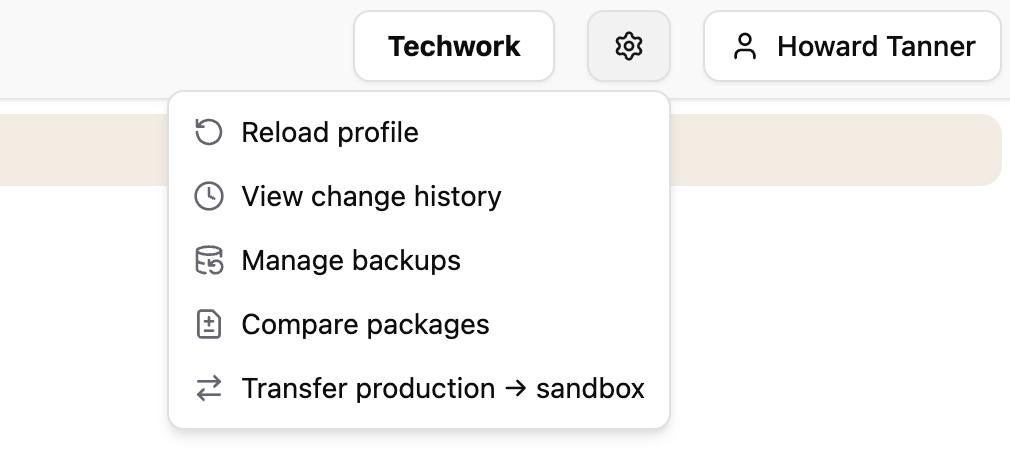
To access the change history for your profile, open the profile menu in the top right corner of the screen and select "View change history".
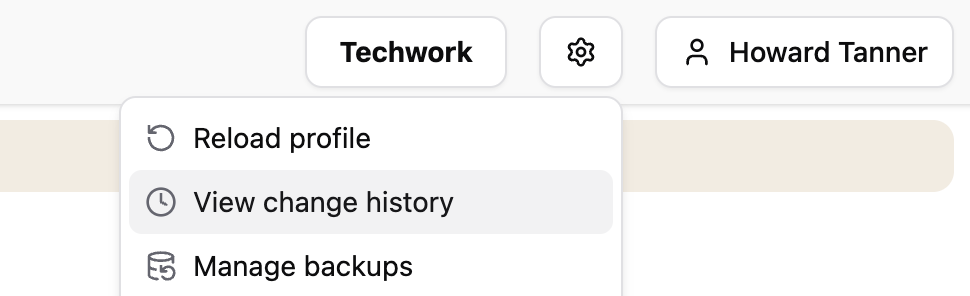
This opens a screen showing all changes made to your profile. Note that only changes made after this release is available in production will be recorded.
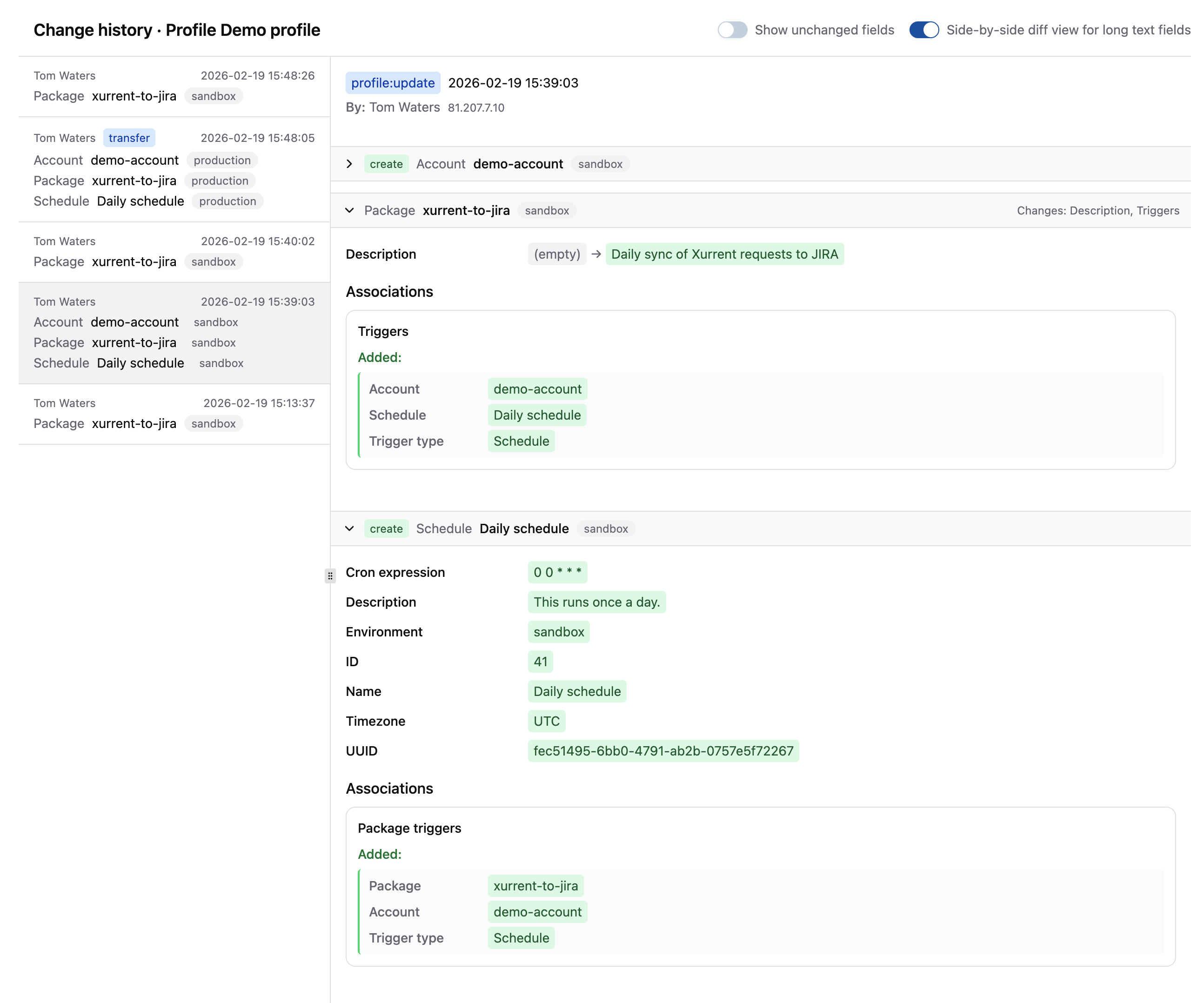
As shown in the screenshot above, the left column displays an overview of your profile changes. Because multiple records can be changed and saved at the same time, each change set on the left shows a summary of the affected records. Clicking on a change set will open its details on the right.
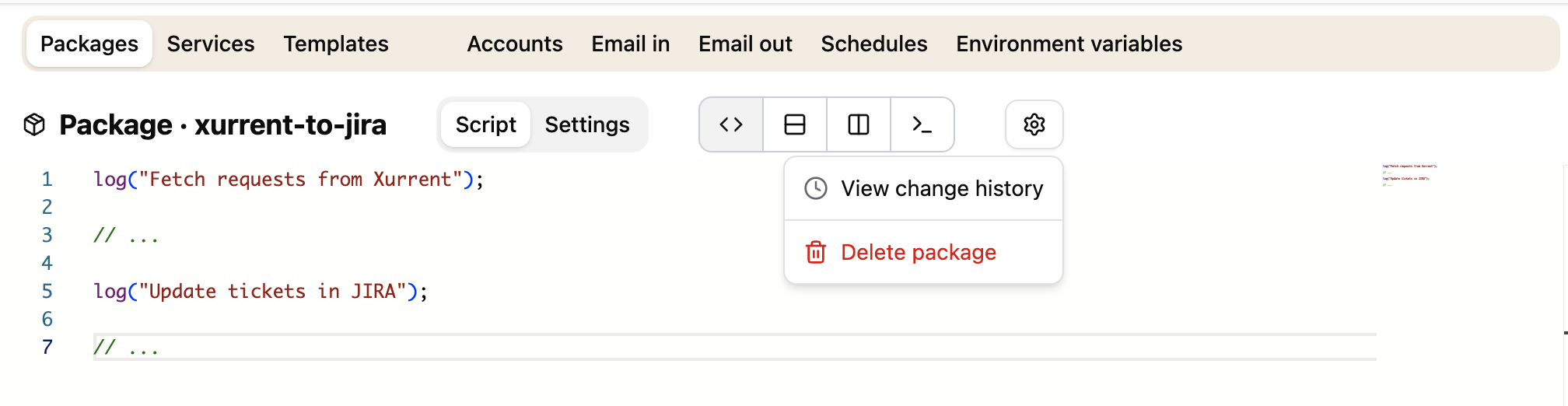
In addition to profile-level history, you can also inspect changes at the record level. Select "View change history" from the record's actions menu to open the record change history.
The screen that opens shows, on the left, a list of changes made to the record, summarized by the changed fields. On the right, you can see the details of each change. If other records were changed as part of the same change set, they will be listed here as well.
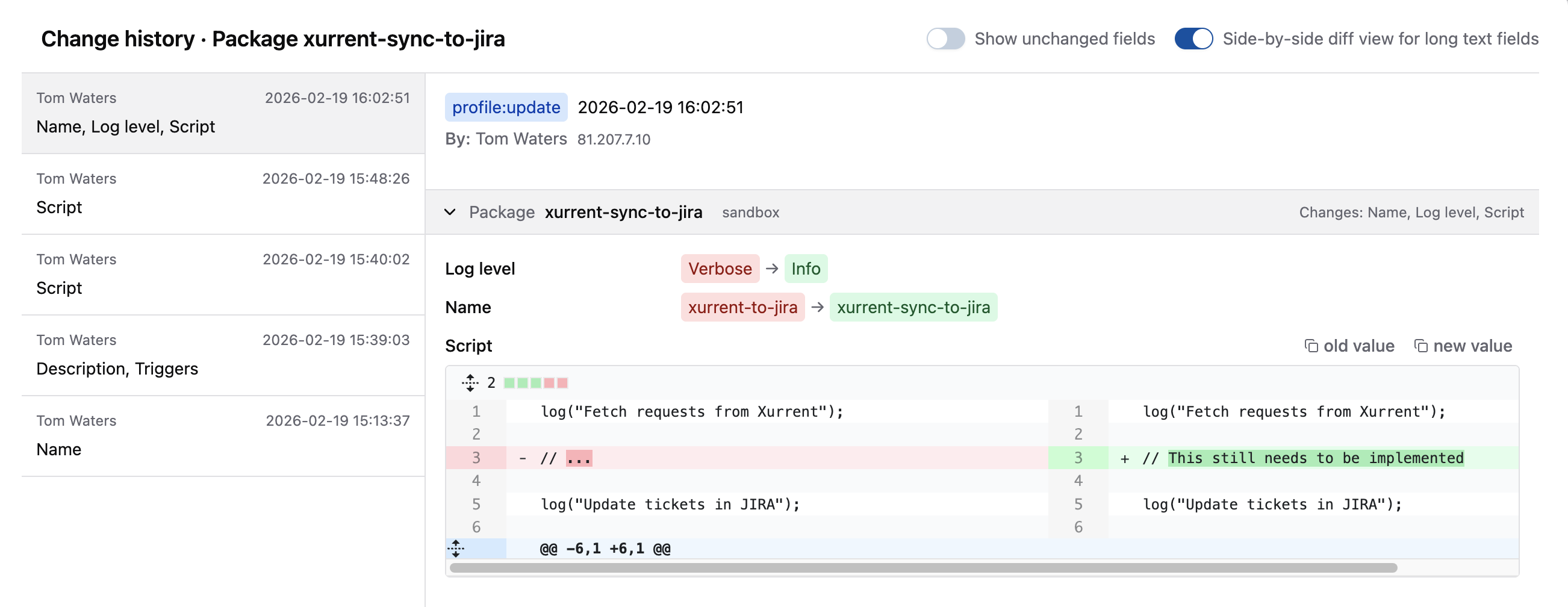
The toggles in the top right let you choose whether to show unchanged fields, and how the diff viewer should display long text fields such as the package script.
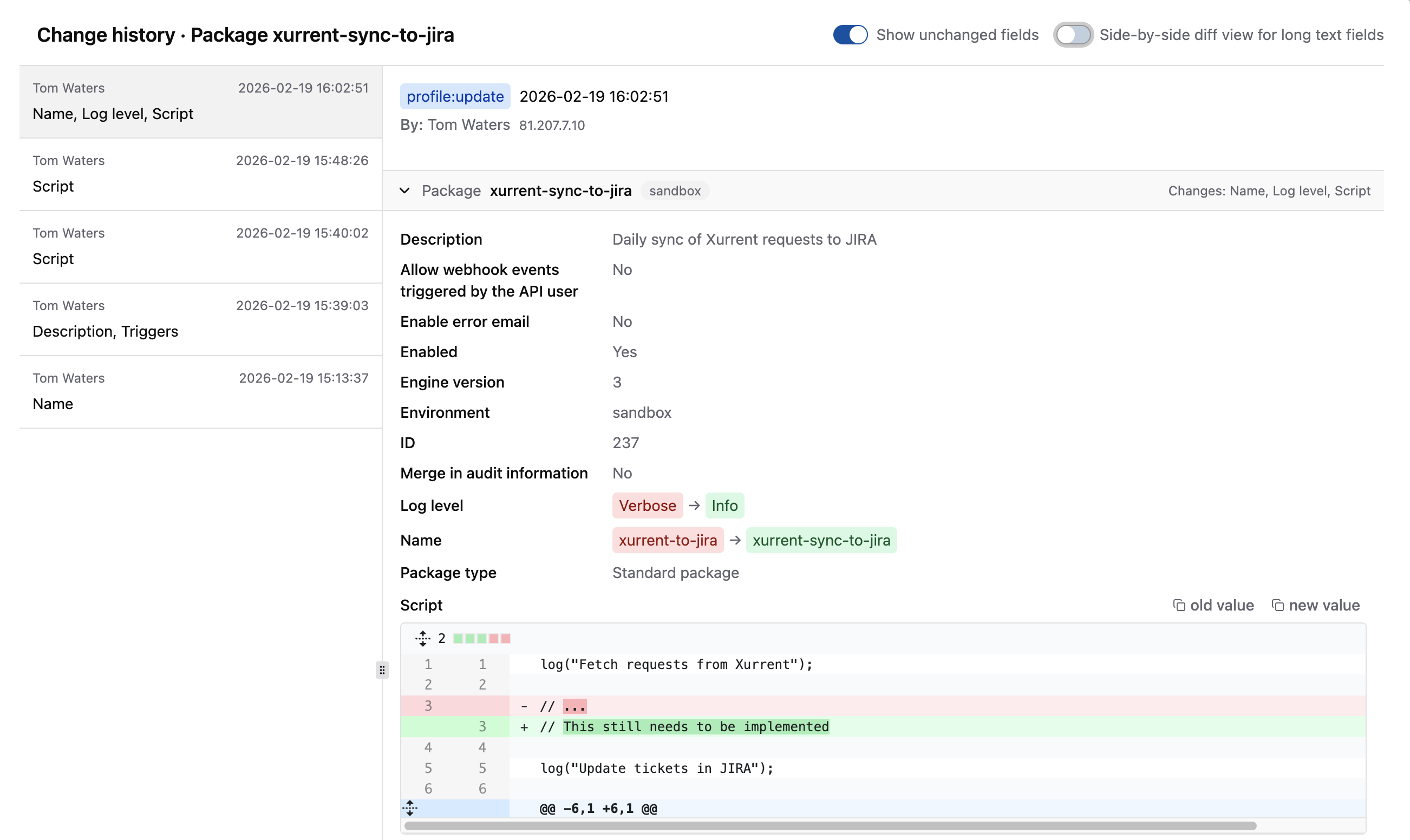
For package scripts and other long text fields, we have also added Copy buttons, so that you easily copy the old or new value to the clipboard. This can come in handy, for example, when you want to revert a change to the script of a single package.
However, if you ever need to revert your entire environment to a previous state, the next new feature will make that easier.
Environment backups
You can now create backups of your environments. A backup allows you to restore your environment to a previous state. To access this functionality, open the profile menu in the top right corner of the screen, and select "Manage backups".
You will see a list of previously created backups, which are preserved for 28 days.
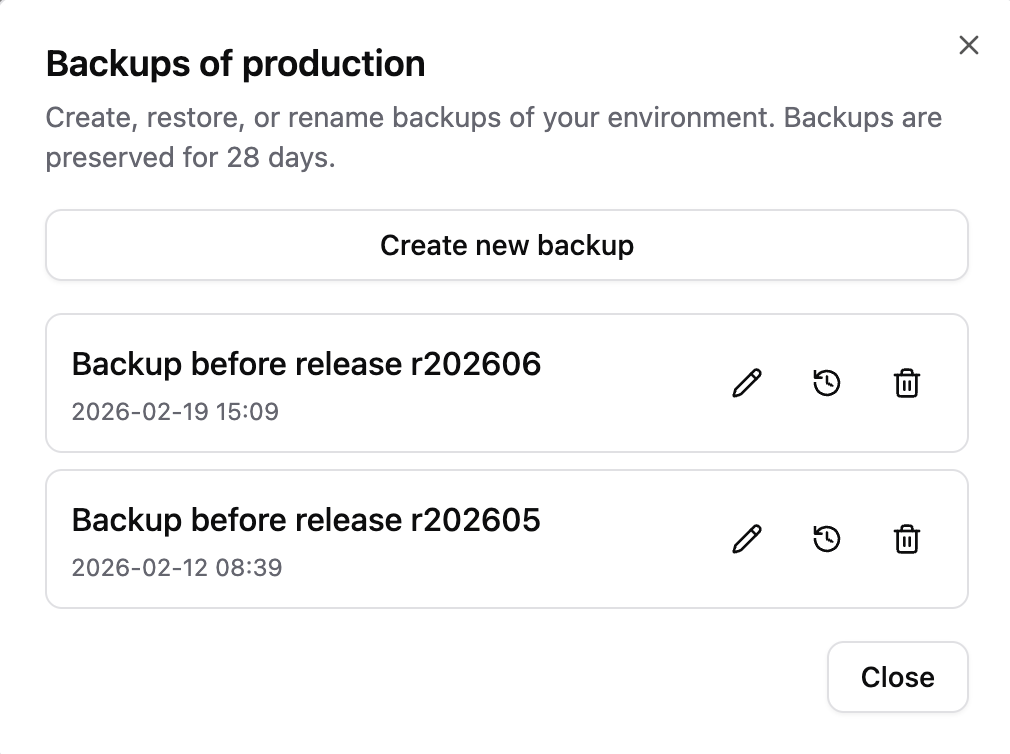
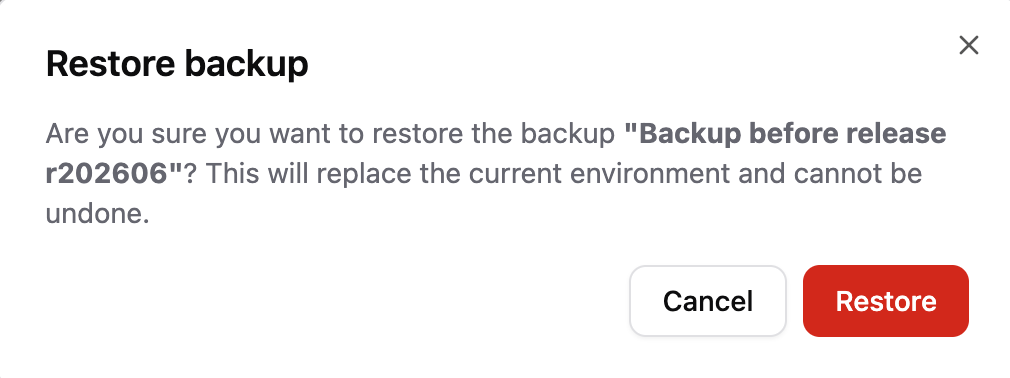
You can create a new backup, rename an existing backup, and restore an existing backup. When you restore a backup, the automator will replace the current environment with the state of the backup.
This functionality is especially useful when transferring your changes from sandbox to production, so you can easily roll back to a previous state if something goes wrong. For this reason, we have added an option for automatically creating a backup to the transfer dialog.
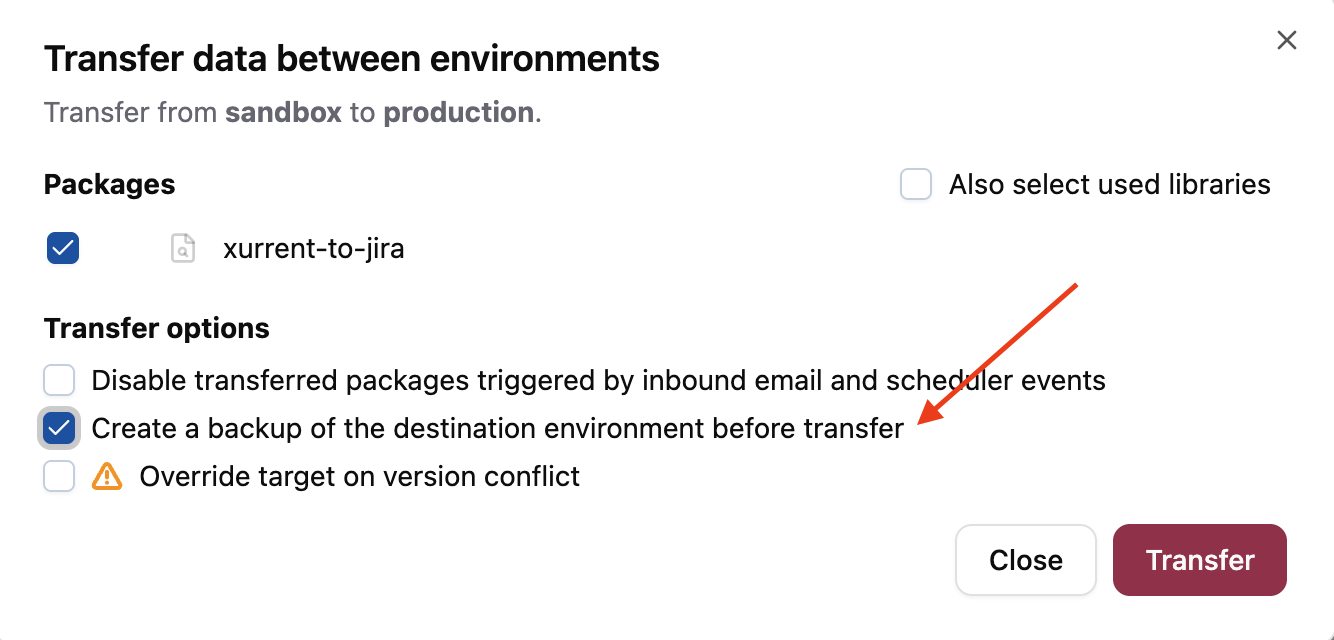
This functionality replaces the old "environment snapshots" functionality. Together with the change history, we believe that this new approach is easier to use and better fits how snapshots were typically used.
Template improvements
The documentation on templates has been improved and promoted to a separate section in the sidebar menu. The documentation now better explains what templates are and how to use them, with several examples. We have also included comprehensive reference documentation for the three styles, such as Comment style, than you can use to add dynamic content to a template.
As an extra bonus, we have made the Comment style and Curly style more powerful, and these styles now support nesting of conditionals and loops. (The ASP style already supported this.) You can use that, for example, to loop over the notes of all the requests linked to a workflow.
Transform map to array
In release r202601, we added a bunch of modern JavaScript features to the automator. These features have made it easier to convert data structures between different formats.
One small omission, however, was the ability to directly convert a Map to an array. That has now been made possible, and can be done as follows:
const myMap = new Map();
myMap.set("x", 1);
myMap.set("y", 2);

const arr1 = [...myMap]; // => [["x", 1], ["y", 2]]
const arr2 = [...myMap.entries()]; // same => [["x", 1], ["y", 2]]
At most 1 default outbound email configuration
Outbound email configurations can be marked as "default". You can use this so that you don't have to explicitly specify which configuration to use when sending an email via the sendMail function.
It does not make sense to have more than 1 default configuration per environment, but until now, the automator did not enforce this. This release fixes that. To mark an outbound email configuration as default, open its actions menu and select "Mark as default".

Important
Log in at least once before March 31 to preserve your current password
If you have already logged into the automator at least once since November 20th, 2025, no action is needed, and you can ignore this message.
Otherwise, please log in before March 31st to preserve your password. On November 20th, 2025, we updated the way passwords are stored, and your credentials will be automatically migrated to the new format the first time you log in. After March 31st, the old format will no longer be supported, and any passwords that haven't been migrated will stop working.
If you miss the deadline, don't worry — you can still regain access by clicking "Need help signing in?" on the login page and following the instructions there.
Environment snapshots are no longer available
As mentioned above, we have replaced the environment snapshots functionality with backups. Previously created snapshots will not be migrated. After reviewing existing snapshots, we found that the majority were over a month old and may no longer reflect current needs.
Timeline
The deployments of the release will be performed on
| Environment | Date |
|---|---|
| Demo | Friday, February 20th |
| Production | Thursday, February 26th |
The deployment of the Production environments will be conducted outside of office hours (Central European Time Zone).