Proxy
The automator Proxy lets the automator securely reach systems inside your network. It is a small Node.js application that you install on a machine in your own environment, Windows or Linux, where it executes predefined scripts or shell commands on behalf of your packages.
Many systems worth automating are not reachable from the internet, such as an
internal database or a server behind the company firewall. The automator cannot
connect to them directly. The proxy bridges that gap: a package calls
executeOnProxy, the automator
encrypts the command and hands it to the proxy, and the proxy executes it inside
your network and returns the encrypted result. By default the proxy opens every
connection itself, from inside your network, so there is no need to open anything
in your firewall or expose internal systems to the internet.
Typical scenarios:
- Provisioning tasks that must run inside the network, such as creating a user account in an on-premises directory.
- Running maintenance on internal infrastructure, for example restarting a service in response to an alert or patching a server after a vulnerability report.
- Retrieving data from or updating an internal system that is not reachable from the internet, for example to sync records with a Xurrent workflow.
How it works
On the automator side, a Proxy account holds the connection settings.
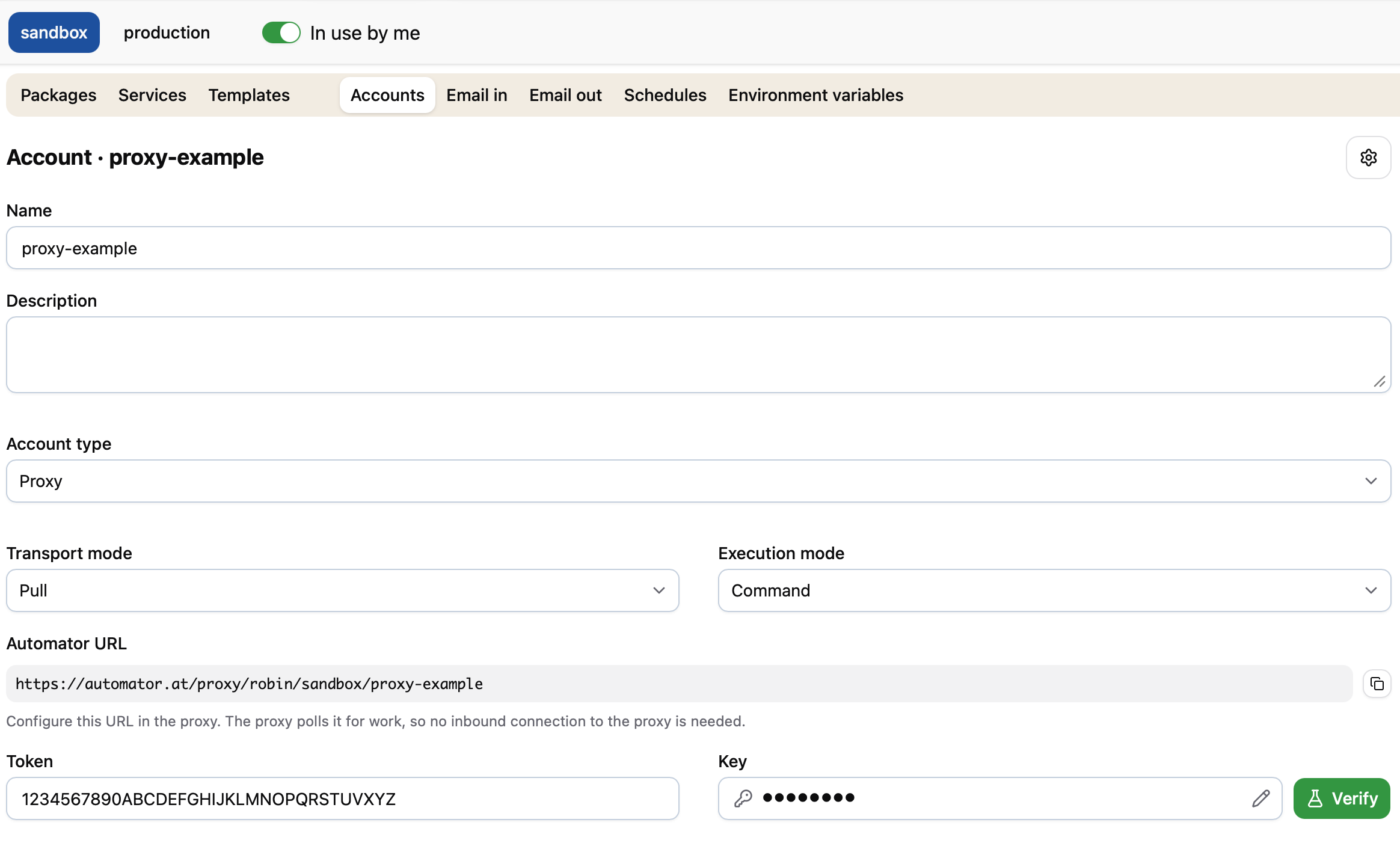
On your side, the proxy is configured with one or more profiles. Each profile matches a Proxy account and defines what that account is allowed to execute: a fixed set of scripts or arbitrary shell commands (see Execution modes).
When a package calls executeOnProxy, the automator encrypts the command data with the account's encryption key and
sends it to the proxy. The proxy decrypts the payload, verifies the token, executes the command, and returns the
encrypted result to the package. Payloads are encrypted end to end; see
Security and privacy for the details.
By default, the proxy uses the pull transport mode: the proxy opens every connection from inside your network, polling the automator for work and posting the results back. No inbound firewall openings are needed, and internal systems are never exposed to the internet:
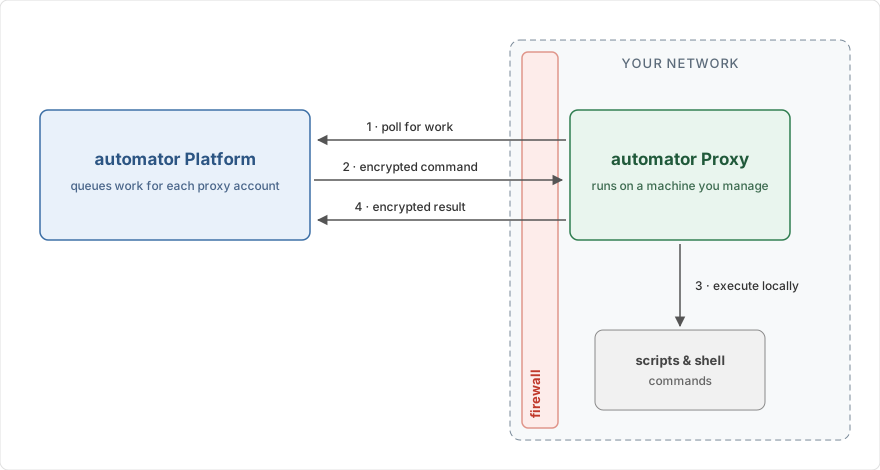
See Transport modes for the details and for the alternative push transport mode.
In this section
- Get started: run your first script on a Windows server through the proxy.
Concepts:
- Transport modes: the two ways the automator and the proxy connect.
- Execution modes: what a Proxy account is allowed to execute.
- Security and privacy: encryption, script allowlisting, and what data leaves your network.
- High availability: running redundant proxy instances in active/active or active/passive setups.
How-to guides:
- Run scripts: run predefined scripts with validated parameters.
- Run shell commands: run arbitrary shell commands.
- Install the proxy: install the proxy inside your network and register it as a service.
Reference:
- Configuration: all configuration options of the proxy.
See also Network configuration for the hostnames and IP addresses to allow when your network requires explicit firewall rules.