Responding to events
Now that we've seen how to create a package and manually start a test run, let's see how to configure the package to respond to external events. In the automator, we call these events "triggers".
Switch to the Settings tab of the package and press the Add trigger button.
A dialog will appear asking you to select a trigger type. The selectbox contains several options, such as "Webhook", "Schedule" and "Inbound email". Select "Webhook".
The next input fields are "Webhook" and "Account". However, we haven't created any webhooks or accounts yet, so we are not able to select anything. We will fix that next.
Press Cancel to dismiss the dialog, and switch to the Accounts tab.
An account is a connection to or from a third-party service. The automator supports several different types of accounts, for example to connect to a MySQL database, Microsoft Graph, or Xurrent. It also supports plain HTTP endpoints, which can connect to any service that has an API exposed via HTTP, such as a REST or GraphQL API.
Press the + button in the sidebar to create a new account.
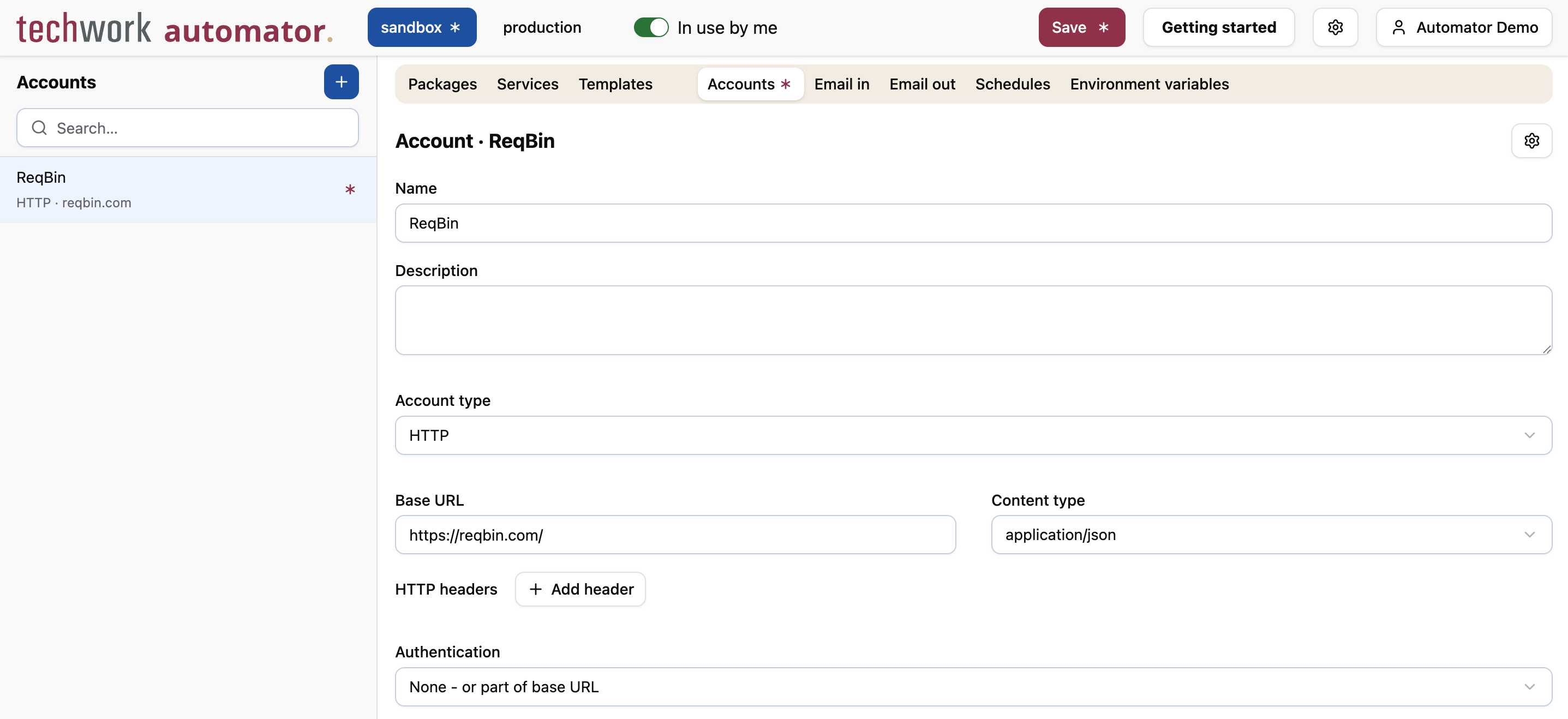
In this tutorial we only use free online services that can be used without any form of registration or authentication. We will use ReqBin to simulate an external service that sends messages to our automator package. In reality, messages would be received from a third-party service such as Xurrent or Freshservice. Refer to the worked examples section of the documentation for real-world integrations.
Enter the following values in the form:
- Name:
ReqBin - Account type:
HTTP - Base URL:
https://reqbin.com/ - Content type:
application/json - Authentication:
None - or part of base URL
Next, we need an endpoint that the external service can send messages to. Switch to the Webhooks tab, then press the + button in the sidebar to create a new webhook.
Enter the following values in the form:
- Name:
ReqBin - Webhook type:
Generic
Then press the Create webhook URL button. This will generate a unique URL, secured via basic authentication, that the external service can use to send messages to our automator package. Copy the webhook URL to the clipboard, because it's only shown once.
Now that we've created an account and a webhook, switch back to the Packages tab, and press the Add trigger button again.
Enter the following values in the dialog:
- Trigger type:
Webhook - Webhook:
ReqBin - Account:
ReqBin - Webhook event:
<ANY>
Press OK to add the trigger to the package.
Finally, make sure to check the "Enabled" checkbox at the top of the form and press "Save".
When you create a new package, it is not enabled by default. A disabled package will ignore any trigger events and never execute, other than by manually triggering it via the "Start test run" button. Since a package usually creates or modifies data in external systems, it would be dangerous to accidentally trigger the package while you're still developing it. As a safety mechanism, therefore, enabling a new package is an explicit action.
Let's try it out.
Open another browser tab, go to https://reqbin.com/ and paste the webhook URL that you copied to the clipboard into the big input field at the top of the page.
Don't worry if the webhook URL is no longer in your clipboard. In that case, just go back to the ReqBin webhook and press "Regenerate webhook URL" to create a fresh URL. Copy it to the clipboard, close the dialog and save the profile.
There is a selectfield at the right of the field that says "GET". Change it to "POST". Finally, press Send.
Go back to the automator, bring up the log panel and press the Reload now button.
A new occurrence of the message Hello, world! should appear, with a timestamp close to the current time.
Congratulations! You've just triggered an automator package from an external service.